Actions
Let your agent do things in chat — manage the cart, connect shoppers to your team, capture leads.
By default your agent answers questions. Actions let it do things inside the conversation — update the cart, start a call, open WhatsApp, capture a lead, or book a meeting. Each action is a capability you turn on and configure.
The Actions screen
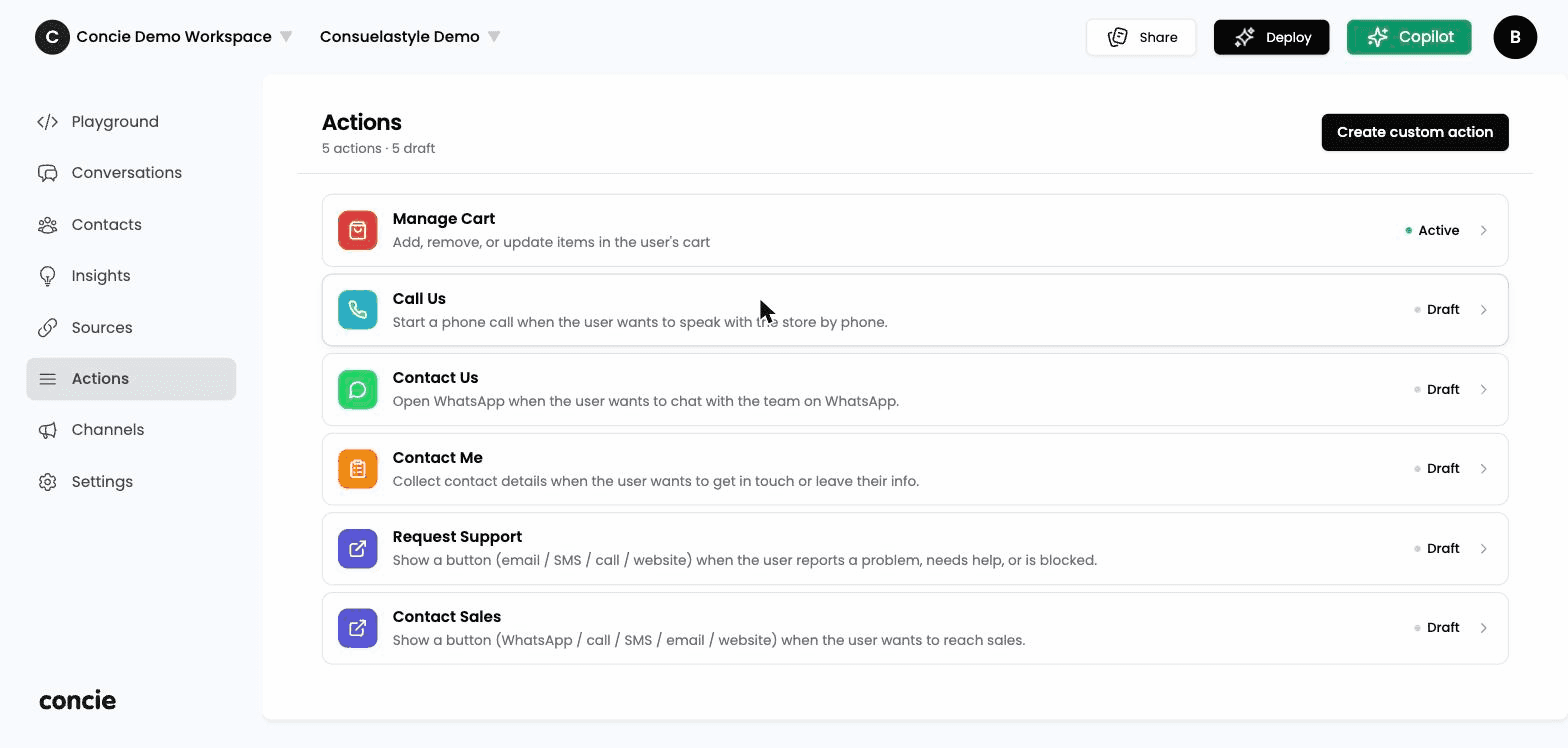
Open Actions in the sidebar. You'll see your agent's actions, each with an Active or Draft status (drafts are configured but not yet live). The top-right Create custom action button lets you build your own.
Built-in actions
Concie ships ready-made actions you can enable, for example:
| Action | What it does |
|---|---|
| Manage Cart | Add, remove, or update items in the shopper's cart. |
| Call Us | Start a phone call when the shopper wants to talk. |
| Contact Us | Open WhatsApp to chat with your team. |
| Contact Me | Collect contact details to follow up. |
| Request Support | Show a support button (email / SMS / call / website). |
| Contact Sales | Show a sales button (WhatsApp / call / SMS / email / website). |
Action types
When you build or configure an action, it has a type that determines what it produces:
- Function — runs a capability (e.g. cart operations)
- Button — surfaces a button (call, WhatsApp, link…)
- Form — collects details from the customer
- Notification — alerts your team
- Message — sends a prepared message
- Assets — shows media, like a gallery
Configure an action
Open the action
Click an action to open its editor.
Set its details
Give it a name and description, write the agent instructions (when and how the agent should use it), and set the specifics for its type — the phone number, WhatsApp number, email, or website it points to.
Set it Active
Toggle the status from Draft to Active. It's now available to the agent in conversations.
Create a custom action
Click Create custom action, pick a type from the grid, then configure it like any built-in. Use this for behaviors specific to your business.
Test the action
Open Playground and prompt the agent so the action should fire — "Add this to my cart" or "How do I reach support?". Confirm it performs the action and surfaces the right button or result.
Related
- Flows — chain actions into automated playbooks
- Build your first agent — instructions that guide when to use actions