Deploy
Put your agent live on your website, landing page, store, social, and email.
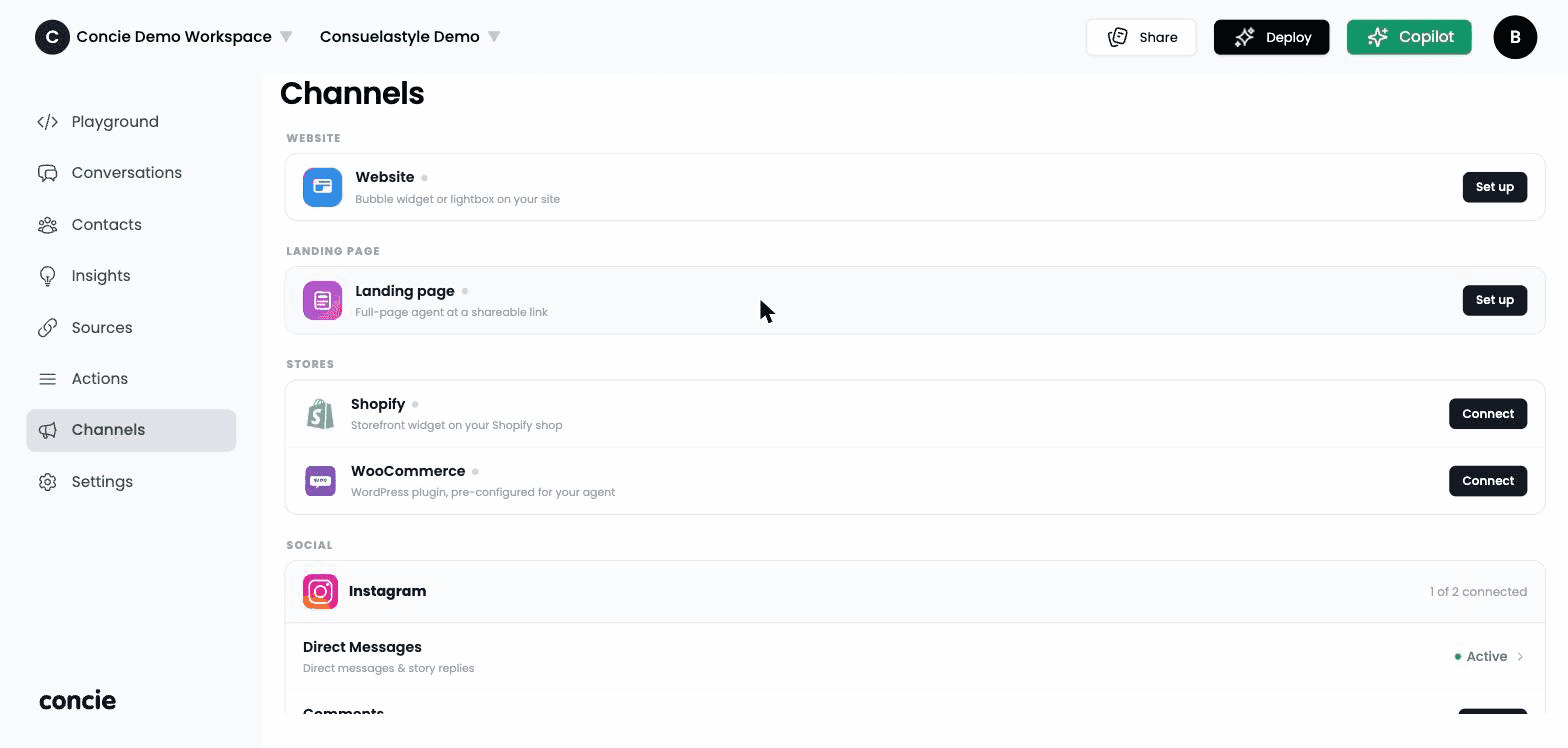
Once your agent answers well in the Playground, deploy it. Channels is where you choose where the agent runs. Each channel has a Set up or Connect button that opens its setup flow.
Website
Embed a chat on your own site. Choose a style:
- Avatar / bubble — a launcher that opens the chat (closes when the customer steps away).
- Iframe — the chat embedded inline in the page.
- Chatbox — an always-open chat.
Copy the snippet
Concie generates a JavaScript embed snippet for your chosen style (Install Widget / Lightbox).
Paste it into your site
Add the snippet just before the closing </body> tag. Concie includes step-by-step install guides for Wix, Shopify, Framer, WordPress, and Webflow.
Publish and check
Publish your site, open it, and send a message to confirm the agent responds.
Customize how it looks under Appearance.
Wix
Add the embed snippet via Wix's custom code / Velo panel.
Webflow
Add the embed snippet in Webflow's Project Settings → Custom Code (footer).
Framer
Add the embed snippet via Framer's Site Settings → Custom Code.
Landing page
A hosted, shareable full-page agent — no website required. Customize its avatar, background, colors, and voice, then share the link. Great for campaigns or as a standalone support page.
Stores
Run the agent inside your e-commerce storefront:
Shopify
Connect as a Shopify app via a single OAuth approval (no manual plugin). Once connected you'll see your shop domain, connection date, and session/message stats.
WooCommerce
Download the pre-configured plugin (.zip) with your agent baked in, then in WordPress go Plugins → Add New → Upload Plugin → Install → Activate. The page confirms activation automatically.
There are two ways in — pick whichever matches your setup:
Download a pre-configured plugin, already linked to your agent — no Agent ID to paste.
Install the generic plugin from the marketplace, then connect your agent from the plugin's own settings page.
Social
Let the agent reply on social platforms:
- Instagram — connect via OAuth and choose what to handle: DMs, Comments, and/or Story replies. "1 of 2 connected" means part of the setup (e.g. DMs but not Comments) is done.
- Messenger (Facebook) — authorize via Facebook to handle Page DMs.
- WhatsApp — connect a WhatsApp Business account via Meta's signup flow.
Hand inbound email to the agent by adding Concie's address as a forwarding address in Gmail or Outlook, entering your email, and confirming the verification.
Related
- Appearance — style the widget
- Actions · Flows — make the deployed agent do things